Fix Microphone Not Working on Windows 11
No mic in Teams, Zoom, or Discord? On Windows 11 it is usually a privacy toggle or the wrong input device, not broken hardware. Here is the fix.
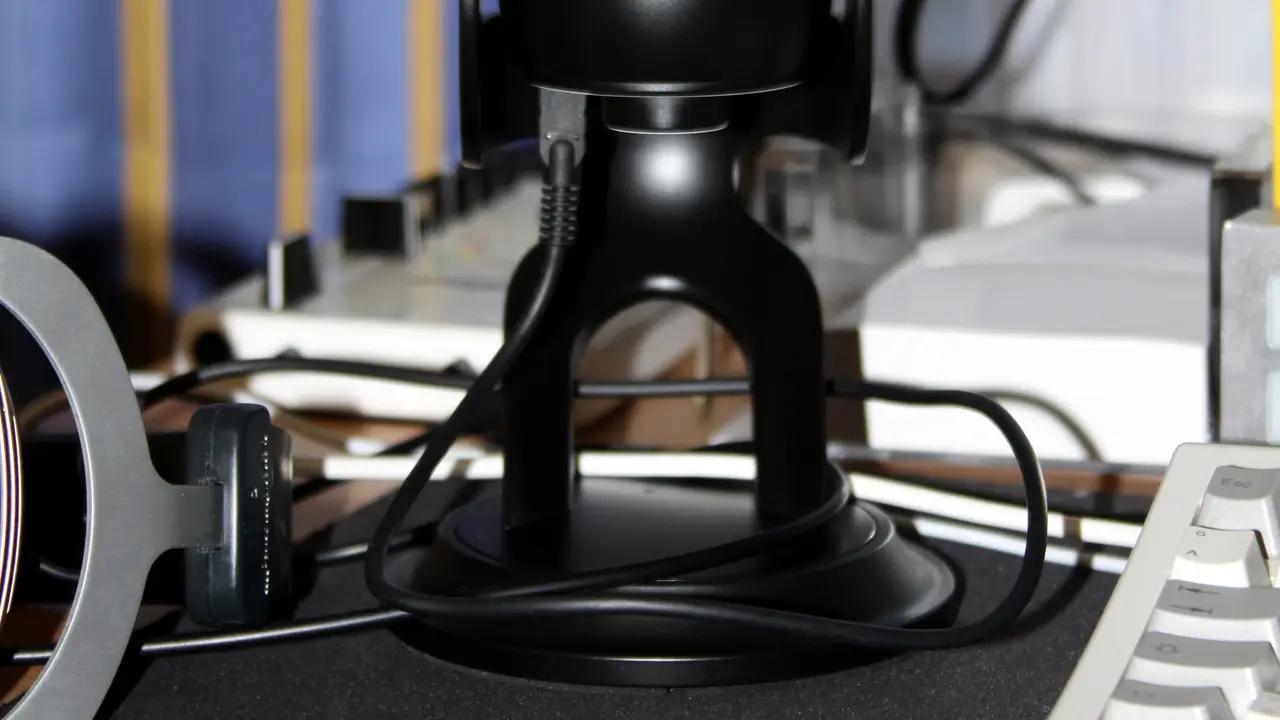
When your microphone goes silent in a meeting, the instinct is to blame the hardware. On Windows 11, the far more likely cause is a privacy permission blocking access or the wrong input device selected. Both take under a minute to fix once you know where to look, and neither requires a new microphone.
Quick answer
A microphone that will not work on Windows 11 is most often blocked by a privacy setting or set to the wrong input device, not broken. Fix it by enabling microphone access under Settings, Privacy and security, Microphone (including "Let apps access your microphone" and "Let desktop apps access your microphone"), selecting the correct input device under Sound settings, and testing it there before blaming the hardware.
Key takeaways
- The top cause is a privacy toggle, not a hardware fault.
- App access is layered: system access, app access, and desktop-app access must all be on.
- The wrong input device selected is the second most common cause.
- Test the mic in Settings, Sound to prove whether Windows hears it at all.
- If toggles are grayed out, a registry edit can restore access before you touch drivers.
Check the privacy permissions first
Windows 11 gates microphone access behind three separate switches, and any one being off silences the mic for the apps that need it. This is the single most common reason a microphone "stops working," so start here.
- Open Settings, then Privacy and security, then Microphone.
- Turn on Microphone access at the top.
- Turn on Let apps access your microphone.
- Scroll down and turn on Let desktop apps access your microphone.
- Confirm the specific app (Teams, Zoom, Discord) is allowed in the app list.
Desktop apps like Discord and Zoom fall under the "desktop apps" toggle, which people frequently miss because it sits below the per-app list.

Select the correct input device and test it
If the permissions are on but the mic is still silent, Windows may be listening to the wrong device, a monitor's non-existent mic or a virtual audio cable, for example.
- Open Settings, System, then Sound.
- Under Input, pick your actual microphone.
- Click into it and use Start test, then speak normally.
- Watch the level bar move, then Stop test and adjust the Input volume if it is low.
If the level bar moves during the test, Windows hears the mic and the problem is app-side; recheck the app's own device selection and permissions.
Run the troubleshooter and update the driver
If Windows itself is not registering the mic, the built-in troubleshooter and a driver refresh clear most remaining cases. Search for and run the microphone troubleshooter through the Get Help app, then open Device Manager, expand Audio inputs and outputs, right-click your microphone, and update or reinstall the driver. A clean reinstall resolves a corrupted driver that survives normal updates.
Match the symptom to the fix
| Symptom | Likely cause | Fix |
|---|---|---|
| Mic dead in one app only | That app lacks permission | Enable the app in the Microphone privacy list |
| Mic dead in all apps | System microphone access is off | Turn on Microphone access at the top of the page |
| Discord or Zoom has no input | Desktop-app access is off | Enable "Let desktop apps access your microphone" |
| Test bar does not move at all | Wrong input device selected | Choose the correct device under Sound, Input |
| Toggles are grayed out | Policy or corrupted setting | Restore access via registry, then restart |
| Level moves but audio is faint | Input volume too low | Raise the Input volume slider |
What to do right now
Work through these in order:
- Turn on Microphone access, Let apps access, and Let desktop apps access under Privacy and security.
- Confirm the specific app is allowed in the per-app list.
- Select the correct microphone under Settings, Sound, Input, and run Start test.
- Run the microphone troubleshooter from the Get Help app.
- Update or reinstall the mic driver in Device Manager.
If the problem is output rather than input, our guide to fixing no audio output device found on Windows 11 covers speakers, and if a headset mic cut out after pairing, see fixing Bluetooth audio stuttering on Windows 11.
Frequently asked questions
Why does my mic work in one app but not another?
Because permissions are per-app on Windows 11. One app may be allowed while another is blocked in the Microphone privacy list, or the blocked app may have its own internal device setting pointed at the wrong microphone. Check both the Windows per-app toggle and the app's own audio settings.
My Discord or Zoom mic is dead but the privacy list looks fine. What now?
Those are desktop apps, so they depend on the Let desktop apps access your microphone toggle, which sits below the per-app list and is easy to miss. Turn it on, then confirm the app's own input device points at your real microphone.
The microphone toggles are grayed out. How do I fix that?
A group policy or a corrupted setting is locking them. On a personal PC you can restore access with a registry edit to the microphone consent store, then restart. On a work or school PC, the setting may be enforced by IT, in which case you will need an administrator to change it.
How do I know if the microphone hardware is actually broken?
Use Start test under Settings, Sound, Input and speak. If the level bar moves, the hardware and driver are fine and the problem is a permission or app setting. If the bar stays flat after enabling all permissions and selecting the right device, then a driver reinstall or hardware check is warranted.