Fix Keyboard Typing Wrong Characters on Windows 11
Keys typing the wrong letters or symbols on Windows 11? It is almost always the layout, Num Lock, or a driver, not a broken keyboard.
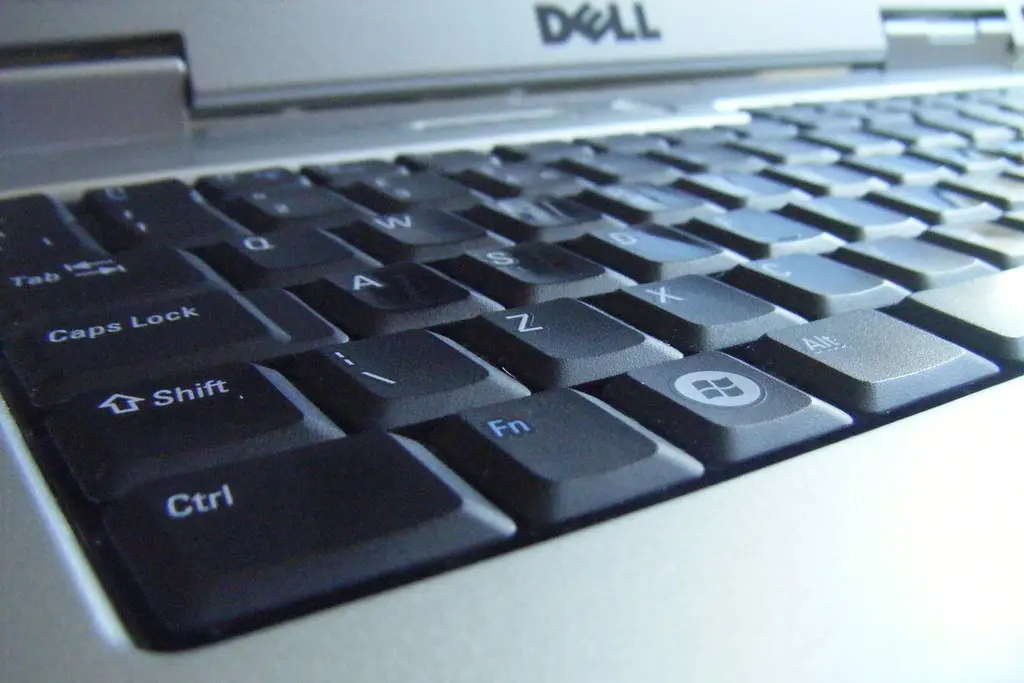
Pressing the quote key and getting an at sign, or watching letters come out as numbers, is disorienting, but it almost never means the keyboard is dying. Windows is simply mapping your keys to a different layout than the one printed on them, or Num Lock is turning part of the keyboard into a numpad. Set the right layout and it snaps back to normal.
Quick answer
When a keyboard types the wrong characters on Windows 11, the cause is usually the wrong keyboard layout or language, Num Lock turning letters into numbers, or an outdated driver, not broken hardware. Fix it by setting the correct layout under Time and language, disabling Num Lock, running the keyboard troubleshooter, and updating or reinstalling the keyboard driver.
Key takeaways
- The wrong layout or language is the top cause; a US keyboard set to UK or another region swaps symbols.
- Num Lock can turn part of a laptop keyboard into a numpad, so letters type as numbers.
- A quick layout switch (often Win+Space by accident) explains sudden changes.
- Updating or reinstalling the keyboard driver clears corrupted mappings.
- Stuck modifier keys can also warp what your keystrokes produce.
Set the correct keyboard layout
A mismatched layout is behind most wrong-character problems. If Windows thinks you have a UK, German, or other keyboard while yours is US (or vice versa), the symbols on the number row and around the quote and bracket keys will be swapped.
- Open Settings, then Time and language, then Language and region.
- Under your language, click the three dots and choose Language options.
- Confirm the installed keyboard matches your physical keyboard (for example, US QWERTY).
- Remove any extra layouts you did not intend to add.
You may have switched layouts by accident with Win+Space or Alt+Shift; those shortcuts cycle through installed layouts, and one stray press explains a sudden change.

Disable Num Lock on laptops
On many laptops without a separate numpad, Num Lock overlays numbers onto a block of letter keys (u, i, o, j, k, l). With it on, those letters type numbers instead.
Press the Num Lock key, often labeled NumLk and reached with the Fn key, and test typing again. If the affected keys return to letters, Num Lock was the cause.
Run the troubleshooter and update the driver
If the layout is correct and Num Lock is off but keys still misbehave, the driver may be at fault. Run the keyboard troubleshooter under Settings, System, Troubleshoot, Other troubleshooters. Then open Device Manager, expand Keyboards, right-click your keyboard, and choose Update driver. If updating does not help, choose Uninstall device and restart so Windows reinstalls a clean driver.
Rule out stuck modifier keys
A physically stuck Ctrl, Alt, or Shift key, or Sticky Keys latching one on, changes what every keystroke produces. Tap each modifier key firmly a few times, and check Settings, Accessibility, Keyboard to confirm Sticky Keys is off if you did not intend to use it.
Match the symptom to the fix
| Symptom | Likely cause | Fix |
|---|---|---|
| Quotes and symbols are swapped | Wrong regional layout (US vs UK) | Set the correct keyboard layout |
| Letters type as numbers on a laptop | Num Lock is on | Press Fn plus Num Lock to disable |
| Layout changed suddenly | Accidental Win+Space or Alt+Shift | Switch back and remove extra layouts |
| Multiple keys wrong, no pattern | Corrupted keyboard driver | Update or reinstall the driver |
| Every keystroke acts like a shortcut | Stuck or latched modifier key | Free the key; turn off Sticky Keys |
| Only external keyboard is affected | Driver or connection issue | Reconnect and reinstall its driver |
What to do right now
Try these in order and stop when typing is correct:
- Set the correct keyboard layout under Time and language and remove extras.
- Press Fn plus Num Lock to rule out the numpad overlay.
- Confirm you did not switch layouts with Win+Space or Alt+Shift.
- Run the keyboard troubleshooter and update or reinstall the driver.
- Tap the modifier keys and turn off Sticky Keys if it is on.
If the keyboard stops responding entirely rather than typing wrong characters, our guide to fixing a laptop that will not turn on covers dead-input scenarios during boot, and if the trouble appeared after a Windows update alongside other device faults, see fixing Bluetooth not working after a Windows 11 update.
Frequently asked questions
Why does my keyboard type the wrong symbols like @ and " swapped?
Because the layout is set to a different region than your physical keyboard. The US and UK layouts, for example, swap the at sign and the double-quote. Set the layout under Time and language, Language options to match the keyboard you actually have, and the symbols line up again.
Why are my letters typing as numbers?
Num Lock is on. On laptops without a dedicated numpad, Num Lock overlays a number pad onto letter keys like u, i, o, j, k, and l. Press the Num Lock key, usually with the Fn key, to turn it off and restore normal letters.
My layout changed on its own. How did that happen?
You likely pressed a layout-switch shortcut by accident. Win+Space and Alt+Shift both cycle through installed keyboard layouts, so a stray press swaps you to another one. Switch back with the same shortcut, then remove any layouts you do not use so it cannot happen again.
Could this be a hardware fault?
It can, but it is the least likely cause when whole groups of keys are consistently wrong, which points to layout or driver issues instead. Suspect hardware only if specific keys are dead or erratic across every app and after you have confirmed the layout, disabled Num Lock, and reinstalled the driver. Testing with a second keyboard isolates it quickly.