How to Set Up GameChat and a Camera on Nintendo Switch 2
GameChat lets up to four friends video chat while you play. Here is how to connect a camera, check compatibility, and use CameraPlay and AR filters.
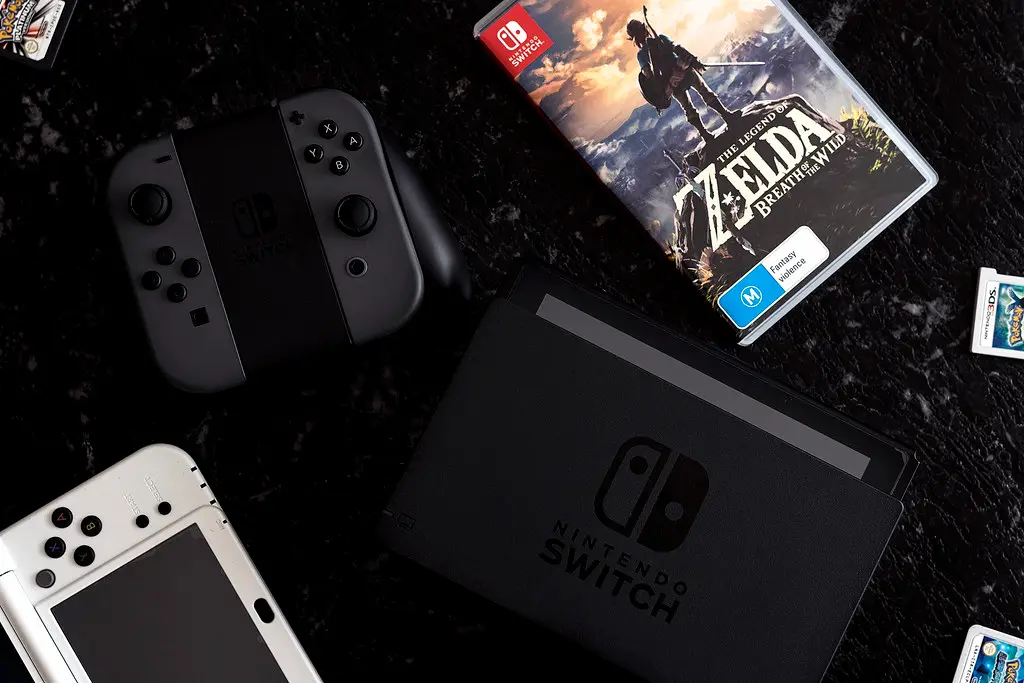
GameChat is one of the Switch 2's headline social features, and adding a camera turns a voice call into a genuine hangout. You can see friends' faces while you play, appear as an in-game character, or layer on AR filters. The setup is simple once you know which cameras work and where they plug in. This guide walks through getting GameChat running with video, step by step.
Quick answer
GameChat needs an active Nintendo Switch Online membership and a constant internet connection. For video, use Nintendo's official Switch 2 Camera or a UVC-compliant USB webcam (many Elgato models work after a firmware update). USB-C cameras plug into the port on top of the console; USB-A cameras must go through the dock. Confirm the camera is seen under System Settings, Controllers and Accessories, Test USB Camera, then up to four players can share video with CameraPlay, character avatars, or AR filters.
Key takeaways
- GameChat needs a Nintendo Switch Online membership and a constant internet connection.
- USB-C cameras plug into the top port of the console; standard USB cameras go into the dock.
- Only UVC-compliant cameras are reliably recognized; many Elgato models work after a firmware update.
- Test any camera under System Settings, Controllers and Accessories, Test USB Camera.
- Up to four players can share video at once with CameraPlay, character avatars, and AR filters.
What you need before you start
GameChat is gated behind two requirements. First, you need an active Nintendo Switch Online membership. Second, you need a persistent internet connection for the duration of the chat. Video is optional on top of voice, but if you want faces on screen, you need a compatible camera.
You have two camera paths. You can buy Nintendo's official Switch 2 Camera accessory, sold separately and frequently discounted, or you can use a compatible third-party USB-C webcam. The important word is compatible: the Switch 2 supports USB-C webcams, but only UVC-compliant (USB Video Class) models are likely to be recognized. Many Elgato cameras work after a simple firmware update.
Where the camera plugs in
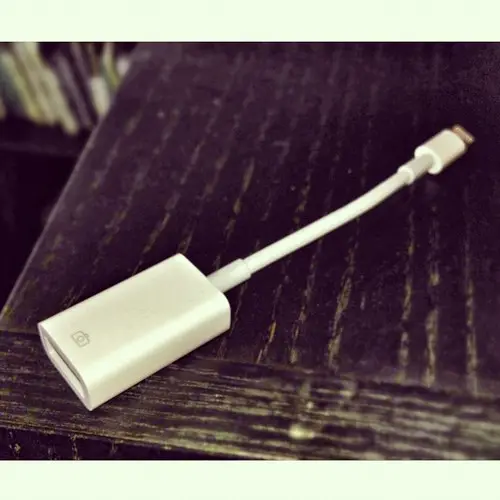
This trips people up, so it is worth being precise. A USB-C camera plugs directly into the USB-C port on top of the console in handheld or tabletop mode. A standard USB camera connects through the dock instead. Match your camera's connector to the right port and you are halfway there.
Tip
If your webcam has a USB-A plug, you must use the dock. There is no USB-A port on the console itself, so a USB-A camera will not work in handheld mode.
Here is the quick reference for which camera goes where and what to expect:
| Camera type | Where it plugs in | Works in handheld mode | Notes |
|---|---|---|---|
| Official Switch 2 Camera (USB-C) | Console top port or dock | Yes | Plug and play, modest image |
| Third-party USB-C webcam (UVC) | Console top port | Yes | Must be UVC-compliant |
| USB-A webcam (UVC) | Dock only | No | Needs the dock's USB-A port |
| Non-UVC webcam | Either | No | Often not recognized at all |
The two rules that cover almost every case: the camera must be UVC-compliant, and a USB-A plug means you are tied to the dock.
Testing camera compatibility
Before you join a chat, confirm the system actually sees your camera. Nintendo built a dedicated tool for exactly this.
- Plug the camera into the correct port for its connector type, the console's USB-C port or the dock.
- Open System Settings from the Home menu.
- Go to Controllers and Accessories, then select Test USB Camera.
- Confirm a live image appears. If it does, the camera is recognized and ready for GameChat.
- If you see nothing, check that the camera is UVC-compliant and update its firmware where possible, then test again.
Using GameChat's video features
Once your camera passes the test, the social features open up. Up to four players can share video at the same time. CameraPlay lets everyone see each other's faces in a corner of the screen while you play together. If you would rather not show your face, character avatars let you appear as a game character that mirrors your expressions and movements. AR filters add accessories or effects pulled from the game itself for a more playful call.
To start, press the dedicated GameChat button to open the chat menu, invite friends, and enable your camera. The video layer sits on top of whatever you are playing, so you can keep gaming while you talk.
Getting the most out of it
A few habits make GameChat smoother. Good lighting dramatically improves the official camera's image, which is otherwise modest. A stable connection matters as much as it does for online play; if your network struggles, our guide to fixing high ping and packet loss in online games helps. And if you are tuning the console for long sessions, our walkthrough on Switch 2 battery and performance settings keeps things running cool.
What to do right now
To get GameChat with video working in a few minutes:
- Confirm you have an active Nintendo Switch Online membership and a stable internet connection; both are required even for voice.
- Check your camera's connector: USB-C goes into the console's top port, USB-A goes into the dock.
- If using a third-party webcam, verify it is UVC-compliant and update its firmware (especially Elgato models) before testing.
- Run System Settings, Controllers and Accessories, Test USB Camera, and confirm a live image appears.
- Press the GameChat button, invite up to three friends, enable your camera, and pick CameraPlay, a character avatar, or an AR filter.
- Sort out lighting before your first call; the official camera's image improves dramatically with a well-lit room.
Frequently asked questions
Do I need Nintendo Switch Online to use GameChat?
Yes. GameChat requires an active Nintendo Switch Online membership and a persistent internet connection, whether or not you use a camera.
Will any webcam work with the Switch 2?
No. The camera must be UVC-compliant to be reliably recognized. Nintendo's official camera works out of the box, and many Elgato webcams work after a firmware update.
Where do I plug the camera in?
USB-C cameras go into the USB-C port on top of the console. Standard USB-A cameras connect through the dock. Use the Test USB Camera tool to confirm it is detected.
How many people can use video at once?
Up to four players can share video in a single GameChat session using CameraPlay, character avatars, or AR filters.
The bottom line
GameChat with video is one of the friendliest features on the Switch 2, and setup is quick once you respect two rules: the camera must be UVC-compliant, and USB-C goes in the console while USB-A goes in the dock. Run the Test USB Camera check, confirm the live image, and you are ready to see your friends while you play.