How to Fix a Second Monitor Not Detected on Windows 11
Get Windows 11 to recognize a second display with cable checks, a forced detect, the graphics-reset shortcut, and a driver refresh.
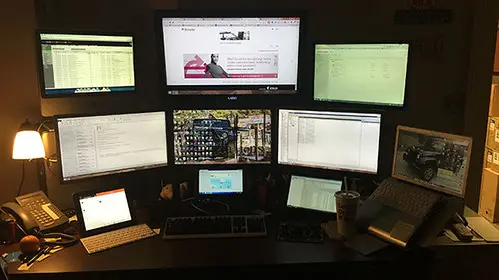
You plug in a second monitor expecting an instant desktop extension, and Windows 11 acts like nothing is there. The screen stays black or shows "No Signal" while your main display works fine. The cause is almost always one of three things, and working them in the right order is what saves you an hour of guessing.
Quick answer
If Windows 11 will not detect a second monitor, work hardware to software. First reseat the cable at both ends, try a different cable, select the correct input on the monitor's menu, and test a different port. Then press Windows + Ctrl + Shift + B to reset the graphics driver instantly, and use Display settings, then Detect, setting the mode to "Extend these displays." If it broke right after a Windows update, roll back or reinstall the GPU driver from Nvidia, AMD, or Intel directly.
Key takeaways
- Most "not detected" cases are a loose cable, a wrong input source, or a bad port. Check hardware first.
- Windows + Ctrl + Shift + B resets the graphics driver instantly and often wakes a dropped display.
- A forced Detect under Display settings catches monitors that did not auto-negotiate.
- Set the mode to Extend so the desktop actually spans both screens.
- A driver update or rollback fixes detection that broke right after a Windows update.
Match the symptom to the likely cause
Before diving in, find the exact behavior you are seeing. It tells you where to start.
| Symptom | Likely cause | Where to start |
|---|---|---|
| "No Signal" on the second monitor | Wrong input, bad cable, or dead port | Physical-layer checks |
| Monitor not listed in Display settings | Driver lost the connection | Detect, then graphics reset |
| Detected but screen stays black | Display mode not set to Extend | Set "Extend these displays" |
| Worked until a Windows update | Driver or display-topology bug | Roll back or reinstall driver |
| Only one external screen via a dock | MST/DisplayLink failure | Connect directly, update dock firmware |
Start with the physical layer
Before touching any settings, eliminate the hardware causes, which account for the majority of cases.
- Reseat the video cable firmly at both ends. HDMI and DisplayPort connectors back out easily.
- Try a different cable entirely. A failing cable is one of the most common silent culprits.
- On the monitor's own menu, select the correct input source (the HDMI or DisplayPort number you actually plugged into).
- Plug into a different port on the PC. A dead port or a flaky adapter (especially USB-C to HDMI dongles) is common.
- Confirm the monitor has power and is switched on, not just in standby.
Note
If you are using a docking station or a daisy-chained DisplayPort setup, connect the second monitor directly to the PC to test. Docks and MST hubs add a layer that frequently breaks detection after a firmware or Windows update.
Force Windows to detect the display
Windows sometimes fails to auto-negotiate a monitor that is connected and powered.
- Right-click the desktop and choose Display settings.
- Scroll to Multiple displays and click Detect.
- If it appears, set the drop-down to Extend these displays so your desktop spans both screens.
If detection still fails, try the graphics reset shortcut: press Windows + Ctrl + Shift + B. The screen flickers black for a second as the graphics stack reinitializes, and a sleeping display often springs to life.
Update, roll back, or reinstall the graphics driver
If the monitor only stopped working after a Windows update, the graphics driver is the prime suspect.
- Open Device Manager, expand Display adapters.
- Right-click your GPU and choose Update driver, then Search automatically.
- If detection broke recently, instead open Properties then the Driver tab and choose Roll Back Driver.
- As a last resort, choose Uninstall device, reboot, and let Windows reinstall a clean driver.
For best results, get the driver straight from Nvidia, AMD, or Intel rather than relying only on Windows Update, since their packages include the latest multi-monitor fixes.
If a recent update broke multi-monitor support
A few 2026 Windows 11 cumulative updates have introduced display-topology bugs that limit the system to a single external screen. If detection broke right after an update and drivers are current, forcing Windows to rebuild its display topology can help. The fix involves clearing the cached display configuration so Windows re-enumerates monitors on the next boot.
Note
Editing the registry carries risk. Before deleting any GraphicsDrivers configuration keys, export a backup of the key and create a System Restore point. If you are not comfortable in the registry, a clean driver reinstall accomplishes much of the same rebuild more safely.
What to do right now
Run these in order and stop as soon as the display appears:
- Reseat the cable at both ends, then try a different cable entirely.
- Select the correct input source on the monitor's own menu (the exact HDMI/DP number you used).
- Plug into a different port on the PC, bypassing any dock or adapter.
- Press Windows + Ctrl + Shift + B to reset the graphics driver.
- Open Display settings, click Detect, and set the mode to Extend these displays.
- If it broke after an update, roll back the GPU driver, or reinstall it fresh from Nvidia, AMD, or Intel.
Frequently asked questions
Why does my second monitor say "No Signal" even though it is plugged in?
The monitor is powered but not receiving video. This is almost always the wrong input source on the monitor, a bad cable, or a dead port. Work through the physical-layer checks first before touching any settings.
My laptop only detects one external monitor through the dock. Why?
Docks rely on MST or DisplayLink, both of which break easily after updates. Connect a monitor directly to confirm the PC can drive two displays, then update the dock's firmware and the DisplayLink driver.
The display is detected but everything is huge or blurry.
That is a scaling and resolution issue, not detection. Set the correct native resolution and adjust scaling under Display settings for that monitor; our guide to fixing dual-monitor scaling on Windows 11 walks through it.
Does this overlap with general graphics stutter problems?
Detection and performance are separate, but both trace back to the GPU driver. If you also see stutter or frame drops, our guide to fixing game stutter and frame-time spikes covers the performance side.
Sources & further reading
- support.microsoft.com/en-us/windows/troubleshoot-external-monitor-connections-in-windows-5b46f4a4-9634-06bb-7622-f960facdfd49
- windowscentral.com/microsoft/windows-help/how-to-fix-second-monitor-not-detected-on-windows-10-and-11
- learn.microsoft.com/en-us/answers/questions/4139658/windows-11-cannot-detect-second-monitor
- technobezz.com/second-monitor-not-detected-windows-fix


