Fix the Automatic Repair Loop on Windows 11
Stuck on 'Preparing Automatic Repair' or a repair loop on Windows 11? Here is how to break out with startup repair, boot rebuild, and SFC offline.
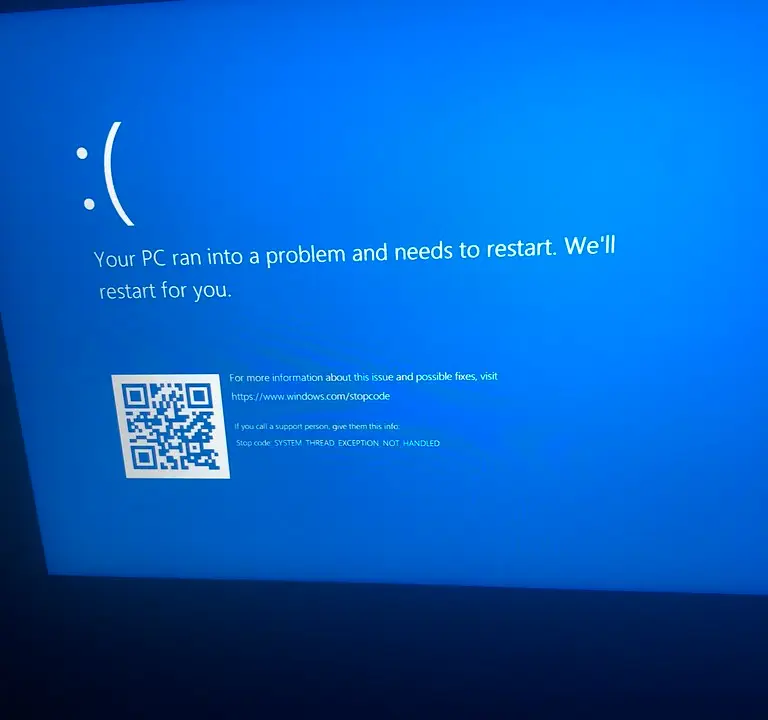
When Windows 11 cannot start normally it triggers Automatic Repair, but sometimes the repair itself fails and the PC reboots straight back into "Preparing Automatic Repair" over and over. This loop usually means corrupt system files, a broken boot configuration, disk errors, or a bad driver or update. The cycle is frustrating because it never reaches the desktop, but you can almost always break out of it from the recovery environment.
Quick answer
To break a Windows 11 Automatic Repair loop, first force a full shutdown with a 10-second power-button hold and drain residual power. If it still loops, enter the recovery menu (Troubleshoot, then Advanced options) and run Startup Repair, then repair system files offline with chkdsk, sfc, and DISM, then rebuild the boot record with bootrec /rebuildbcd. If the loop started after an update or driver, use Uninstall Updates or System Restore. None of these steps touch your personal files; only a final Reset this PC does, and you can choose Keep my files.
This guide moves from the safest fixes to the more involved ones. Work through them in order and stop as soon as the PC boots normally.
Key takeaways
- A hard power drain sometimes clears a transient glitch that started the loop.
- Startup Repair in the recovery menu fixes many cases on its own.
- A broken boot configuration is repaired by rebuilding the BCD from Command Prompt.
- Offline SFC and DISM repair the system files the loop cannot fix while booting.
- A recent update or driver is a common trigger; uninstalling it can break the loop.
Before you start, it helps to know which fix targets which cause, so you are not running every command blindly:
| Symptom / clue | Likely cause | Fix to try | Time |
|---|---|---|---|
| Loop after a recent update | Bad quality update | Uninstall Updates / System Restore | 5-10 min |
| Loop after installing a driver | Incompatible driver | System Restore to prior point | 5-10 min |
| "Boot configuration data is missing" | Damaged BCD | bootrec /rebuildbcd | 5 min |
| Errors mentioning system files | Corrupt Windows files | Offline sfc and DISM | 15-30 min |
| Clicking noises, slow access | Failing or erroring disk | chkdsk C: /f /r, then plan a replacement | 20-60 min |
| No obvious trigger | Transient glitch | Hard power drain | 2 min |
Try a hard power drain first
A stuck repair can come from a temporary hardware state rather than corruption.
- Hold the power button for 10 seconds to force a full shutdown.
- Unplug the charger and, on a desktop, the power cable.
- On a laptop with a removable battery, take it out for 30 seconds.
- Reconnect power and start the PC.
If it boots normally, the loop was a transient glitch. If not, move into the recovery menu, which Windows opens automatically after a few failed boots.
Run Startup Repair
From the recovery menu, let Windows attempt its own repair, sometimes it succeeds on a second or third try.
- In the recovery menu, choose Troubleshoot, then Advanced options.
- Click Startup Repair.
- Wait for it to finish, then restart.
Tip
If you cannot reach the recovery menu at all, create a Windows 11 installation USB on another PC with the Media Creation Tool, boot from it, and choose Repair your computer to get the same Advanced options.
Repair system files offline
If Startup Repair fails, run SFC and DISM against your offline Windows installation from Command Prompt.
- In Advanced options, open Command Prompt.
- Run
chkdsk C: /f /rto fix disk errors. - Run
sfc /scannow /offbootdir=C:\ /offwindir=C:\Windows. - Run
DISM /Image:C:\ /Cleanup-Image /RestoreHealth. - Type
exitand restart.
Replace C: with your Windows drive letter if it differs; in recovery mode it is sometimes mapped elsewhere.
Rebuild the boot configuration
A damaged boot record keeps the loop alive even when Windows itself is fine. Rebuild it from the same Command Prompt.
- Run
bootrec /fixmbr. - Run
bootrec /fixboot. - Run
bootrec /scanos. - Run
bootrec /rebuildbcdand press Y to add the detected install. - Restart.
This is the same family of repairs that resolves harder boot stops like INACCESSIBLE_BOOT_DEVICE.
Undo the change that started the loop
If the loop began right after an update or a new driver, remove it. In Advanced options, choose Uninstall Updates and remove the latest quality update. You can also use System Restore from the same menu to roll back to a point before the trouble started. If the machine keeps failing through update installs, our guide to the undoing changes update loop covers that specific cycle.
Last resort: reset while keeping files
If nothing else works, choose Troubleshoot, then Reset this PC, and select Keep my files. This reinstalls Windows while preserving your documents, though you will need to reinstall apps. A cloud download option fetches fresh system files if the local image is also damaged.
What to do right now
If your PC is looping at this moment, work this order and stop the instant it boots:
- Force a full shutdown (hold power 10 seconds), unplug power, and try one clean boot.
- Let the recovery menu open, then run Startup Repair and restart.
- If still looping, open Command Prompt and run
chkdsk C: /f /r, thensfc /scannow /offbootdir=C:\ /offwindir=C:\Windows, thenDISM /Image:C:\ /Cleanup-Image /RestoreHealth. - Rebuild the boot record with
bootrec /fixmbr,bootrec /fixboot, andbootrec /rebuildbcd. - If the loop started after a patch, use Uninstall Updates or System Restore before anything drastic.
- Only as a last resort, choose Reset this PC and select Keep my files.
Frequently asked questions
Why is my PC stuck on "Preparing Automatic Repair"?
It means Windows detected a startup failure and launched repair, but the repair could not complete, so it loops. The usual causes are corrupt system files, a broken boot configuration, disk errors, or a bad update or driver. Working through the recovery tools breaks the cycle.
Will fixing the loop erase my files?
The repair steps, Startup Repair, SFC, DISM, and rebuilding the boot record, do not touch your personal files. Only if you reach the final reset step should you choose "Keep my files," which preserves documents while reinstalling Windows. Avoid the option that removes everything unless you have a backup.
What if I cannot even reach the recovery menu?
After several failed boots Windows usually opens it automatically. If it does not, build a Windows 11 installation USB on another computer, boot from it, and choose "Repair your computer" to reach the same Advanced options and run every fix in this guide.
Can a failing hard drive cause this loop?
Yes. Disk errors and bad sectors can corrupt the files Windows needs to start, which keeps the repair from succeeding. Running chkdsk C: /f /r from the recovery Command Prompt repairs many of these. If the drive's health is failing, replacing it is the real fix.