Encrypt Your Laptop: BitLocker and FileVault 2026
A lost or stolen laptop is only a data breach if the drive is unencrypted. Here is how to turn on full-disk encryption on Windows and Mac the right way.
A laptop gets lost or stolen somewhere every day. Whether that becomes a quiet inconvenience or a full-blown data breach comes down to one setting: full-disk encryption. With it on, a thief who pulls your drive sees nothing but scrambled bytes. Without it, they have your files, your saved logins, and your tax documents. Windows ships with BitLocker and macOS with FileVault, both free and built in. This guide shows how to enable them correctly, including the recovery-key step people most often get wrong.
Quick answer
Full-disk encryption makes a lost or stolen laptop unreadable, which is why most breach laws exempt encrypted devices. On Windows, turn on BitLocker (Pro, Enterprise, or Education) or Device Encryption on Home; on Mac, turn on FileVault in System Settings, Privacy and Security. The step people get wrong is the recovery key: save it to a password manager or printout kept away from the laptop, never only on the device. Encryption protects data at rest only, so still use a strong login, short auto-lock, and MFA.
Key takeaways
- Full-disk encryption makes a lost or stolen laptop unreadable, which is why most breach laws exempt encrypted devices from mandatory disclosure.
- Windows uses BitLocker (Pro, Enterprise, and Education editions) with AES encryption; Windows Home offers a more limited "Device Encryption."
- macOS uses FileVault, which applies XTS-AES encryption to the whole startup disk.
- The most important step is safely storing your recovery key. Lose it and a hardware fault can lock you out of your own data permanently.
- Encryption protects data at rest only; it does not replace passwords, MFA, or malware protection on a running, unlocked machine.
Why full-disk encryption matters
When your drive is encrypted, the data on it is mathematically inaccessible without the decryption key, which is tied to your login and hardware. Pull the drive, put it in another machine, boot from a USB stick, none of it helps an attacker. They get ciphertext.
This is why it is the default expectation for any device holding sensitive information. Most regulations require a company that loses an unencrypted laptop to report it as a breach of personal data, while an encrypted laptop is typically exempt. The same logic protects you personally: encryption turns "they have all my files" into "they have a paperweight."
Before you start, here is how the two built-in tools compare so you know what you are working with:
| Feature | BitLocker (Windows) | FileVault (macOS) |
|---|---|---|
| Editions / versions | Pro, Enterprise, Education | All modern macOS |
| Cipher | AES-XTS 128 or 256-bit | XTS-AES 128-bit |
| Key hardware | TPM 2.0 chip | Secure Enclave (Apple silicon, T2) |
| Recovery option | Microsoft account, USB, or file | iCloud account or local key |
| Removable drives | BitLocker To Go | Disk Utility / Finder |
Turn on BitLocker (Windows)
BitLocker is available on Windows Pro, Enterprise, and Education. If you are on Windows Home, you may have the lighter "Device Encryption" instead, found in Settings under Privacy and Security.
-
Open BitLocker settings. Go to Control Panel, then System and Security, then BitLocker Drive Encryption.
-
Turn on BitLocker for your operating-system drive. On most modern PCs a TPM chip handles the keys transparently.
-
Save your recovery key. Choose to save it to your Microsoft account, a USB flash drive, or a file kept somewhere safe and offline. Do not skip this.
-
Choose encryption scope. Encrypt the entire drive on an existing PC; "used space only" is fine on a brand-new install.
-
Let it finish. Encryption runs in the background. You can keep using the machine while it completes.
Turn on FileVault (Mac)
-
Open System Settings. Go to Privacy and Security, then FileVault.
-
Turn On FileVault. Click the button to begin.
-
Pick a recovery method. You can allow your iCloud account to unlock the disk, or generate a local recovery key. For a personal Mac, iCloud is convenient; for a shared or work machine, choose the recovery key and store it securely.
-
Record the recovery key safely if you generated one. Write it down and keep it somewhere separate from the laptop.
-
Let encryption complete. It runs in the background and finishes faster on newer Apple silicon Macs.
Note
Your recovery key is the master backstop. If your TPM fails, your firmware updates, or you forget your password, the recovery key is the only thing standing between you and permanently lost data. Store it somewhere you control and will not lose, never only on the encrypted device itself.
What encryption does not do
Full-disk encryption protects data at rest, meaning when the machine is off or locked. It does nothing once you have logged in and the drive is unlocked. A running, signed-in laptop is fully readable to any malware on it or anyone who walks up while it is unlocked.
So encryption is one layer, not a complete strategy. Pair it with a strong login password or biometric, a short auto-lock timeout, phishing-resistant MFA on your accounts, and good malware hygiene. And because encryption can lock you out if something goes wrong, treat it alongside a solid backup strategy so a hardware failure is never catastrophic.
What to do tonight
A lost laptop with an unlocked, unencrypted drive is the breach. Close that gap before you sleep:
- On Windows, open BitLocker Drive Encryption (or Device Encryption on Home) and turn it on for the system drive.
- On Mac, open System Settings, Privacy and Security, FileVault, and switch it on.
- Save the recovery key to a password manager or a printed copy stored away from the laptop, never only on the device.
- Set auto-lock to five minutes or less and require a password (not just sleep) to wake.
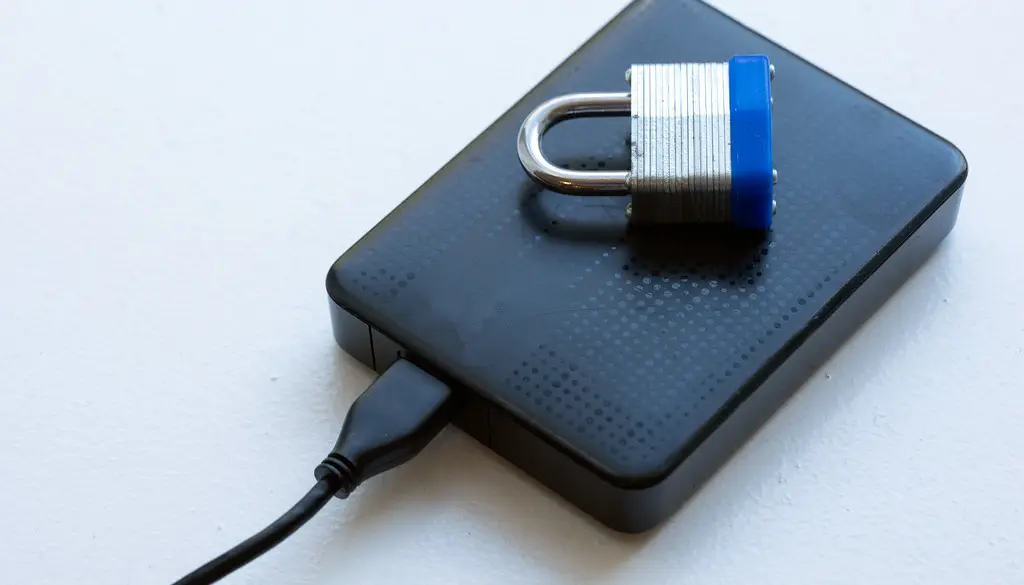
- Encrypt any USB stick or external drive that holds tax records, IDs, or work files.
Frequently asked questions
Does encryption slow down my computer?
On modern hardware, the performance impact is negligible. Both BitLocker and FileVault use hardware-accelerated encryption, and Apple silicon and recent Intel and AMD chips handle it without a noticeable slowdown.
What happens if I forget my password?
This is exactly what the recovery key is for. With it, you can unlock the drive and reset your password. Without both your password and your recovery key, the data is generally unrecoverable, which is the whole point of encryption.
Can I use BitLocker on Windows Home?
Full BitLocker requires Pro, Enterprise, or Education. Windows Home offers "Device Encryption" on supported hardware, which provides similar protection with fewer management options. Check Settings under Privacy and Security to see if it is available.
Should I encrypt external drives and USB sticks too?
Yes, if they hold sensitive data. BitLocker To Go encrypts removable drives on Windows, and macOS can encrypt external volumes through Disk Utility or Finder. A lost USB stick of personal files is just as much a breach as a lost laptop.